How to create Guest Badges for your employees and frequent visitors
Guest Badges are personal unique QR codes for employees or frequent visitors of your premise, enabling fast one-scan check-ins without manual entry.

Guest Badges are personal unique QR codes for employees or frequent visitors of your premise. To enable employees to check-in with guest badges, businesses will need to set up a GuestTrack on an iPad/tablet to be used as a welcome kiosk.
Setup Steps
Step 1: Add your people
Open the Guest Badges tab in the dashboard.
- One person: click Add guest, fill in their name and mobile number (plus email, job title and a remark if you like), then click Add guest in the panel on the right.
- Many people: click Import guests and download the CSV template. Fill it in with Excel or Google Sheets (Name, Mobile, Email, Job title, Remark), then upload it, or copy the rows and paste them in. A header row is skipped.
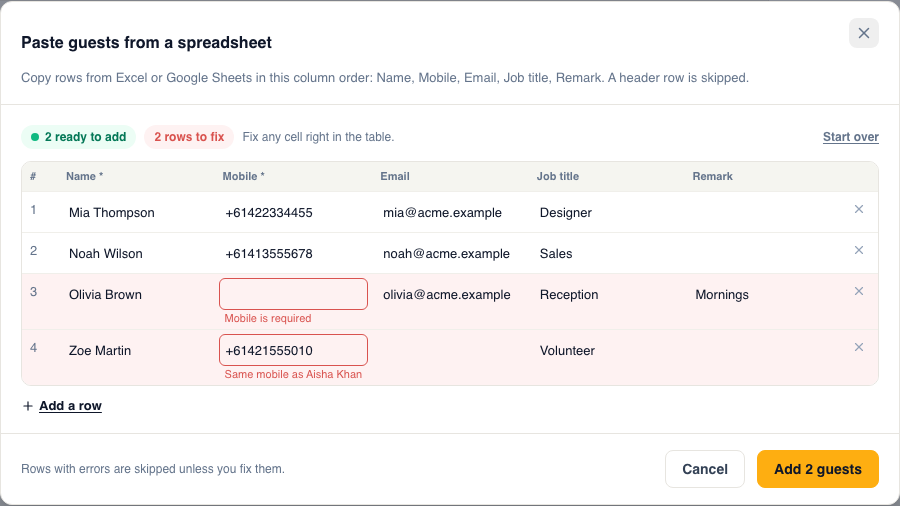
Before anything is saved, you see every pasted row in a preview. Rows that need fixing, such as a missing mobile or a mobile another guest already has, are marked in red. You can fix them right in the table. Mobile numbers need international format, for example +61412345678; Australian numbers starting with 04 are converted for you. Click Add guests to save the rows that are ready.
Step 2: Edit a guest and download their QR code
Click anyone in the list to open their details on the right. You can change their details there and click Save changes. The panel also shows the person's badge QR code, their recent check-ins, and buttons to check them in, pre-register them, or print their badge.
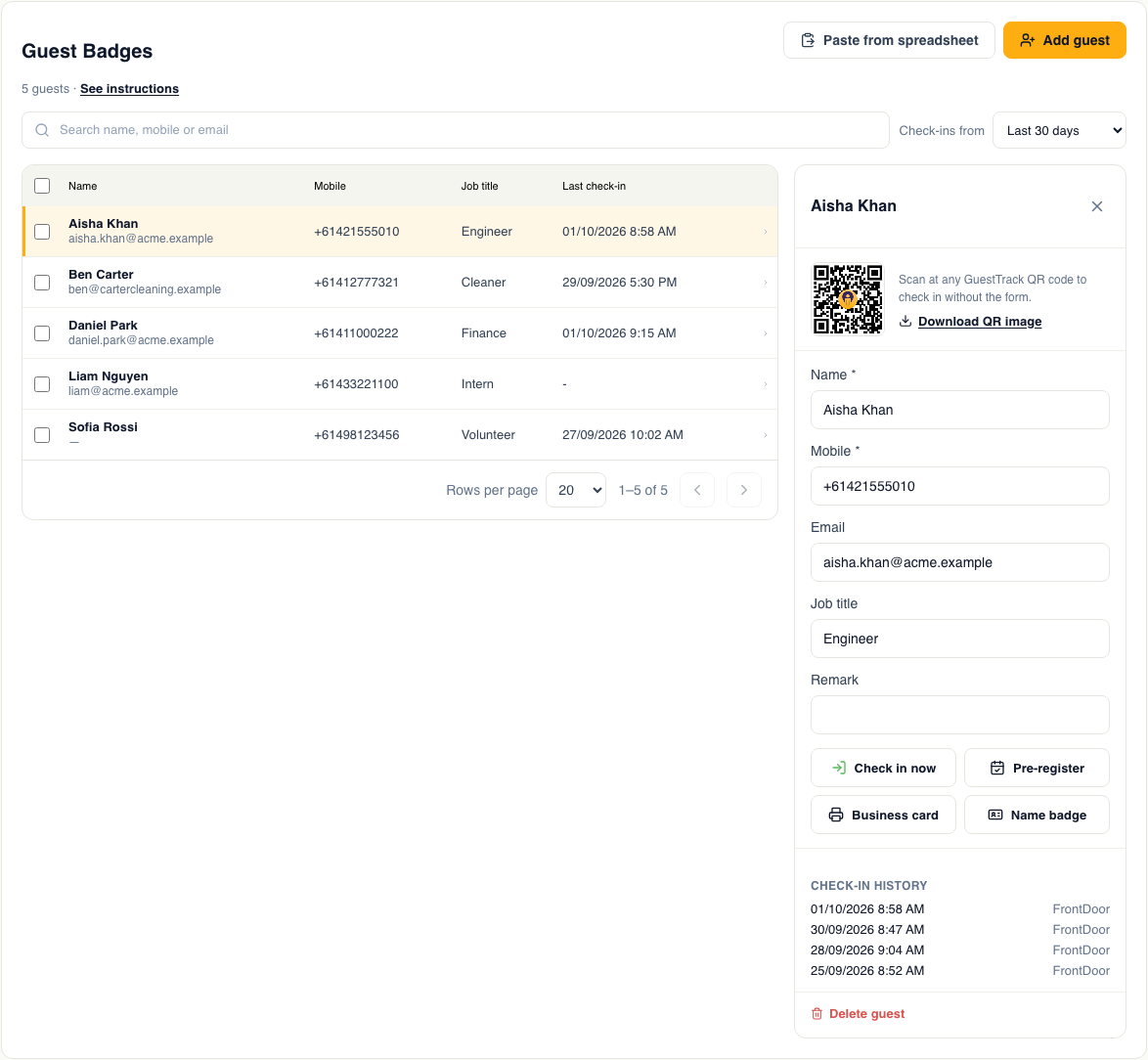
Click Download QR image to save a single badge as an image.
Step 3: Print badges in bulk
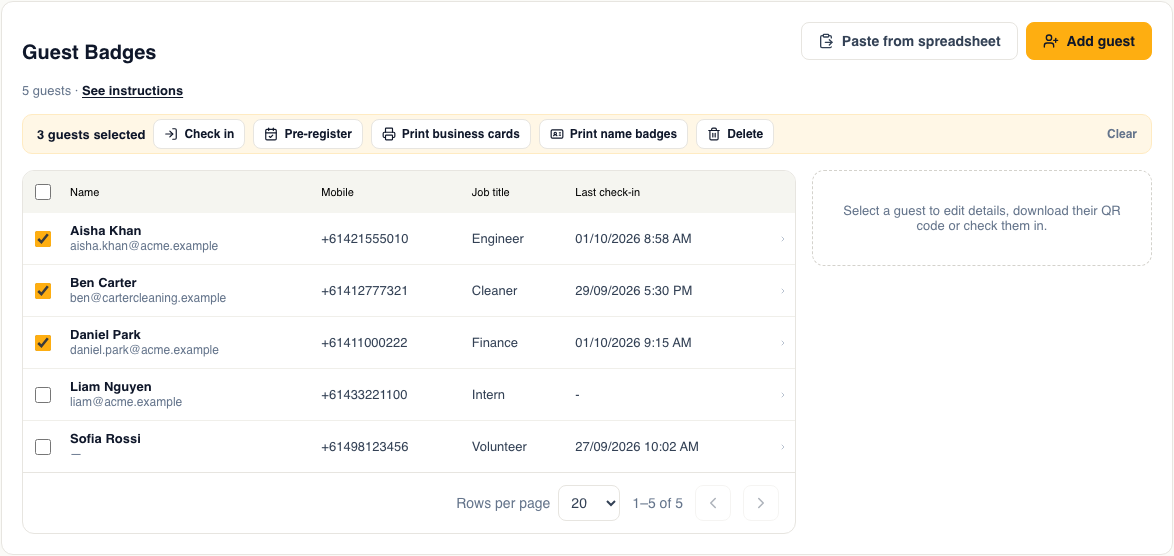
Tick the people you want, and a bar of actions appears above the list. Choose Print business cards or Print name badges to download a PDF ready for paper or label sheets. From the same bar you can also check in or pre-register everyone you ticked.
Use Check-ins from to pick the period shown in each guest's last check-in and history. The list updates as soon as you choose.
Step 4: Check-in with badge
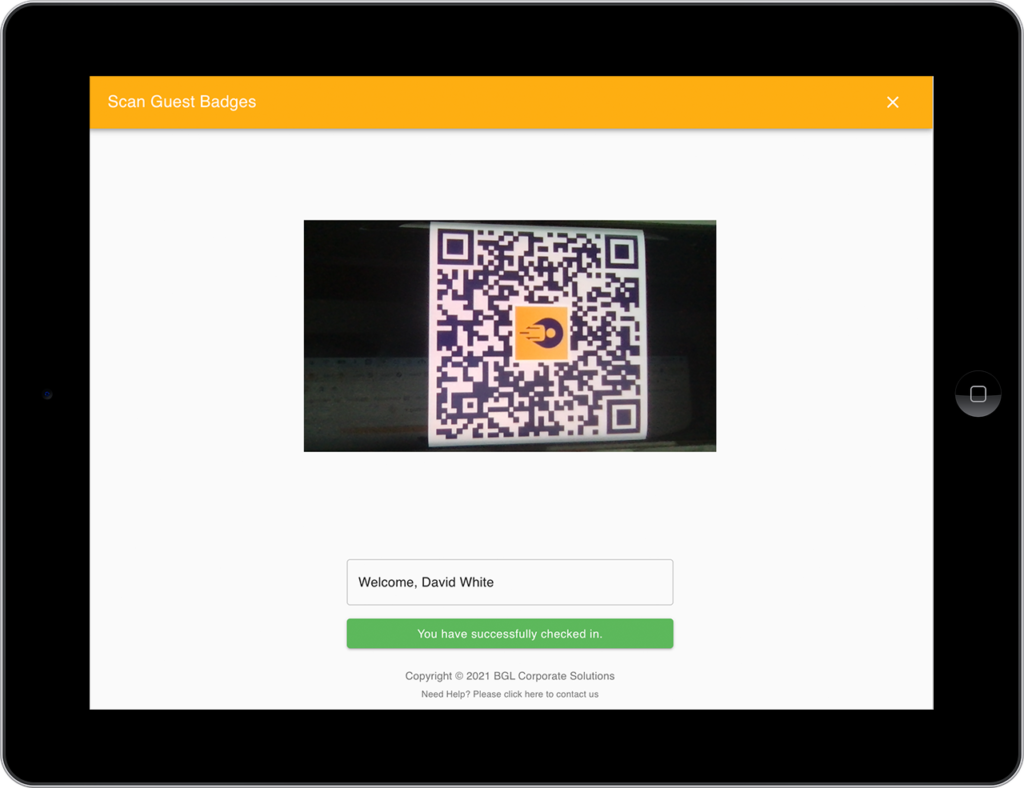
Upon arrival, click the "I've got a Guest Badge" to bring up the QR code scanner.
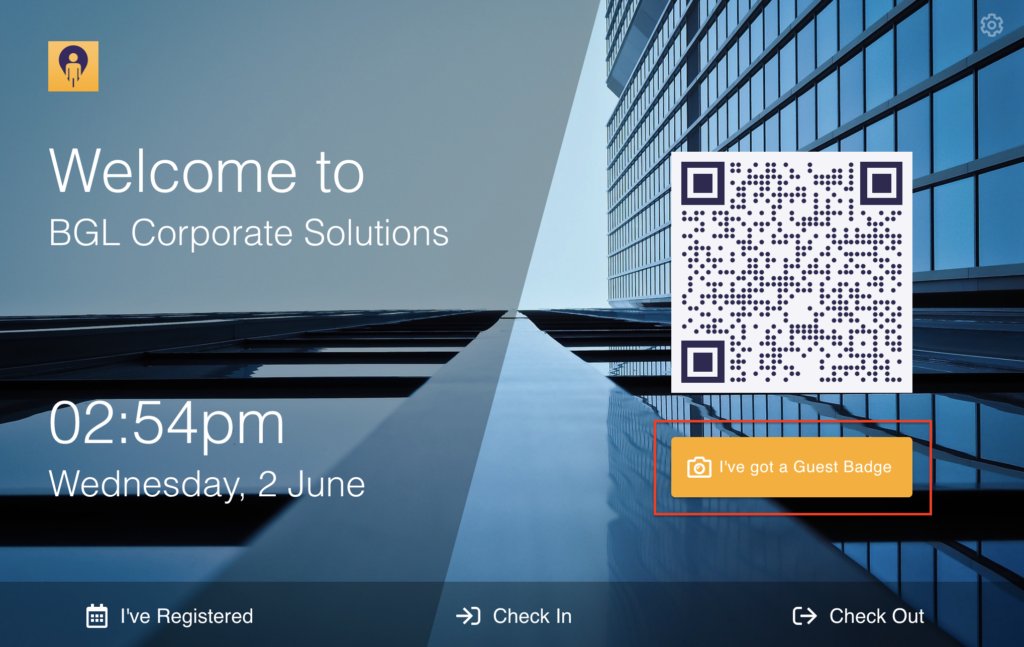
Place the guest badge QR code in front of the camera, it will automatically complete the check-in.
Benefits
- Fast check-in - Employees scan their badge, instant check-in
- No manual entry - Profile details pre-loaded
- Bulk creation - Paste a list from Excel or Google Sheets, with errors flagged before saving
- Printable - Print business cards or name badges for one person or many at once
- Works with Welcome Kiosk - Requires iPad/tablet setup