How to Check In Visitors with a Welcome Screen on iPad
Display the GuestTrack Welcome Screen on an iPad to use it as a self-service check-in kiosk at your reception, entrance, or event.
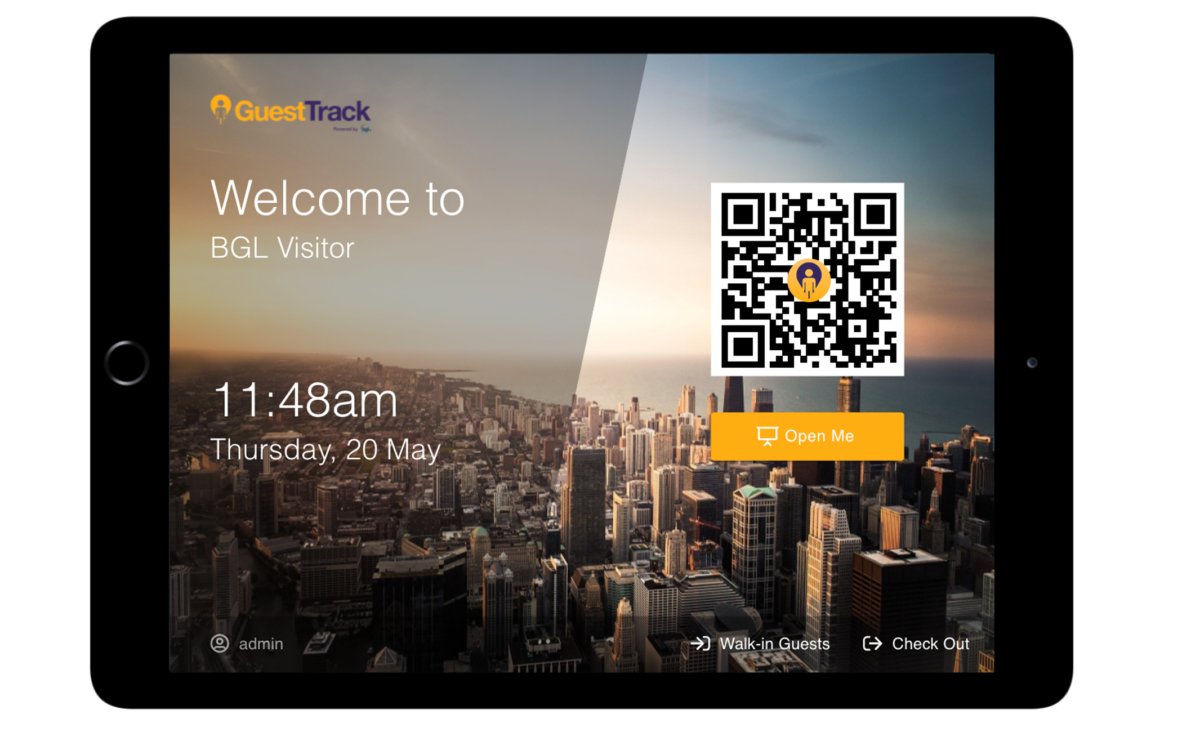
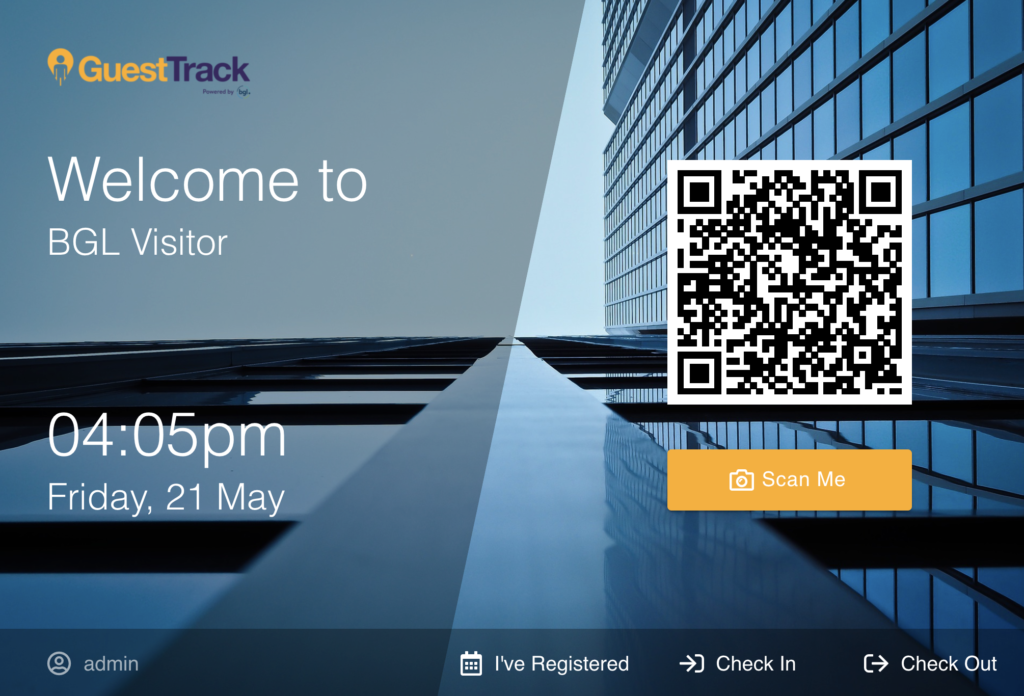
Businesses can display the GuestTrack Welcome Screen on an iPad and use the iPad as a check-in kiosk.
Setup Steps
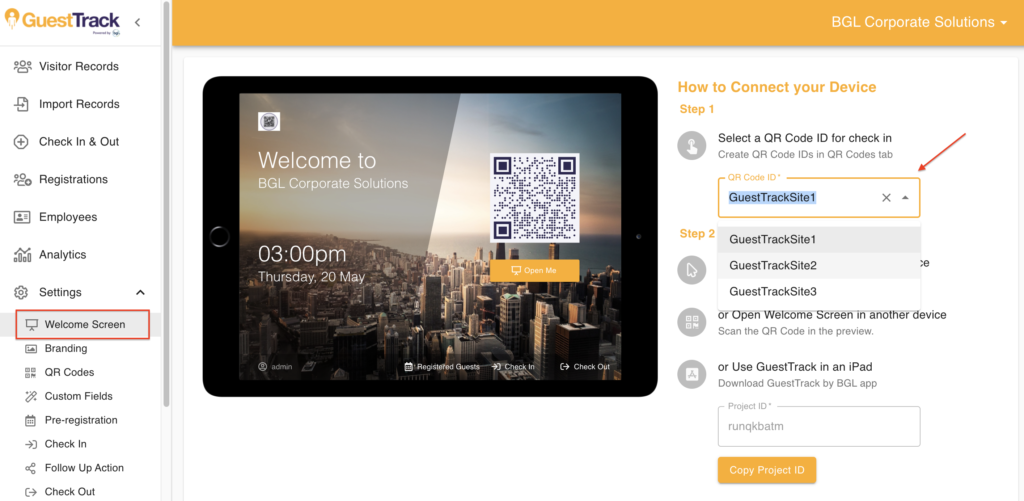
1. Choose a QR Code ID
Navigate to Settings > Welcome Screen. Select a QR Code ID.
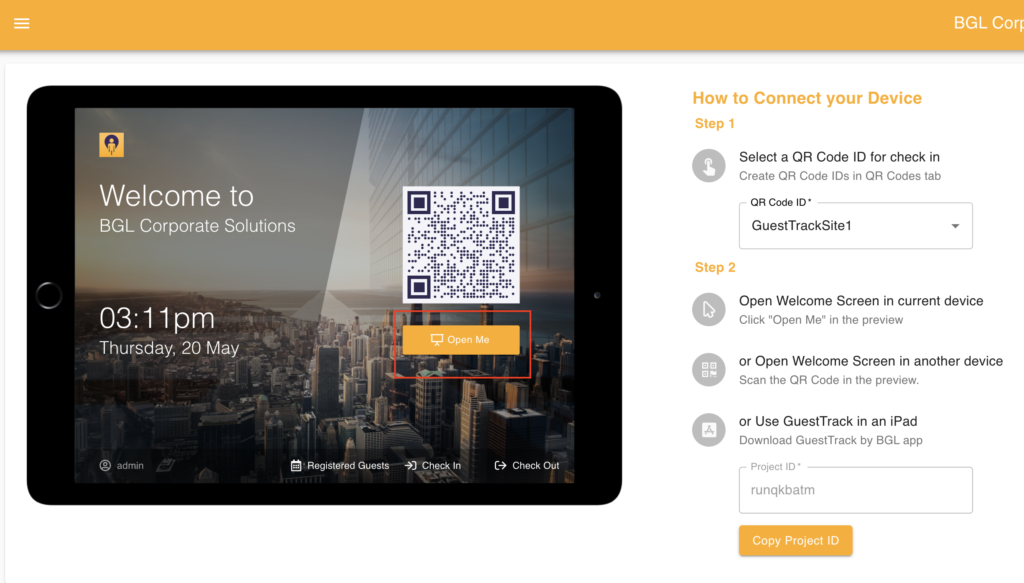
2. Open the Welcome Screen in current device
If you are currently logged in with an iPad, click the "Open Me" button then the welcome screen will open in a new tab.
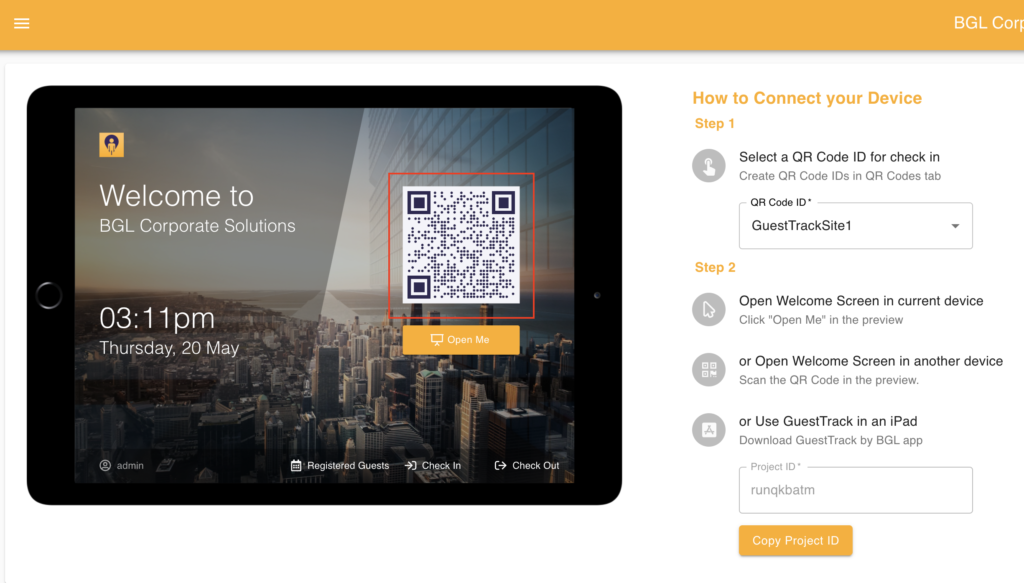
Open the Welcome Screen in another device
If you want the Welcome Screen open in another device (eg. you are currently logged in to the dashboard on your desktop and you want the welcome screen open on the iPad), scan the QR code with the device's camera.
3. Display the screen
Simply display the iPad at the entrance of your premise for visitors to check-in and check-out.
Use Cases
- Reception desks - iPad at front desk
- Entrance kiosks - Self-service check-in
- Event registration - Dedicated check-in station
- Office lobbies - Professional visitor management
- Retail stores - Customer tracking
Requirements
- iPad or Android tablet
- GuestTrack app or web browser
- Internet connection