How to Add Custom Fields to Your Visitor Form
Custom form is a powerful feature which allows you to design your own visitor form with text boxes, dropdowns, checkboxes, signatures, and more.

Custom form is a powerful feature which allows you to design your own visitor form.
Steps to Add Custom Fields
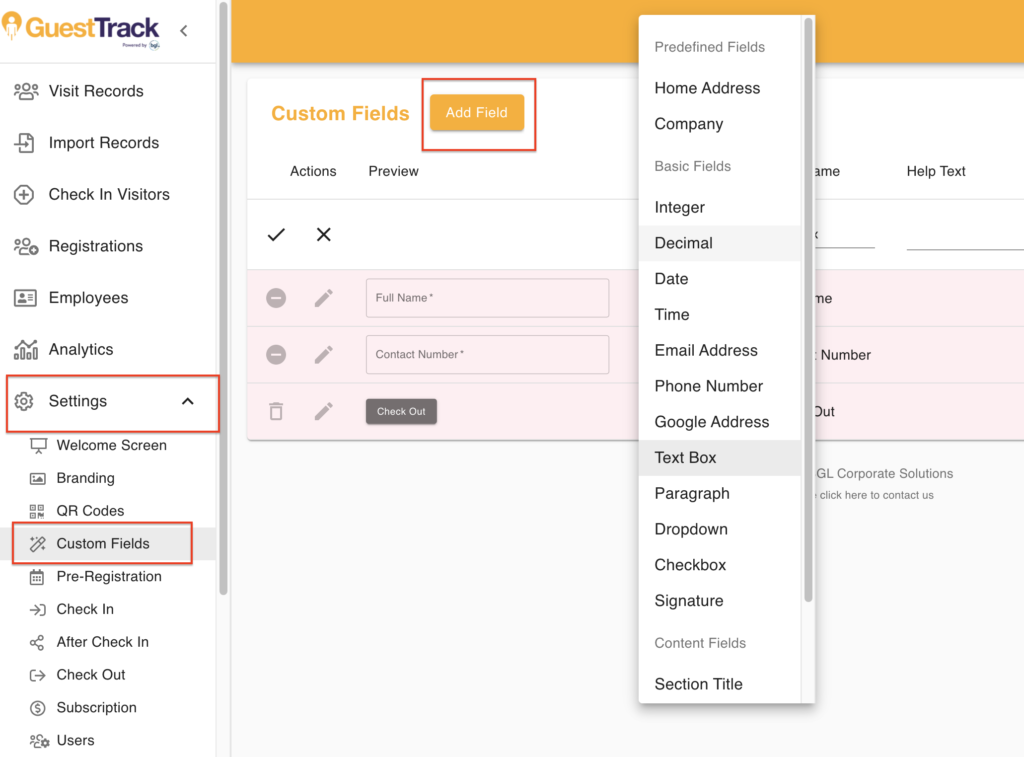
Step 1: Select field type
On the management dashboard, navigate to Custom Form > Custom Fields. Click "Add Field", select a field type.
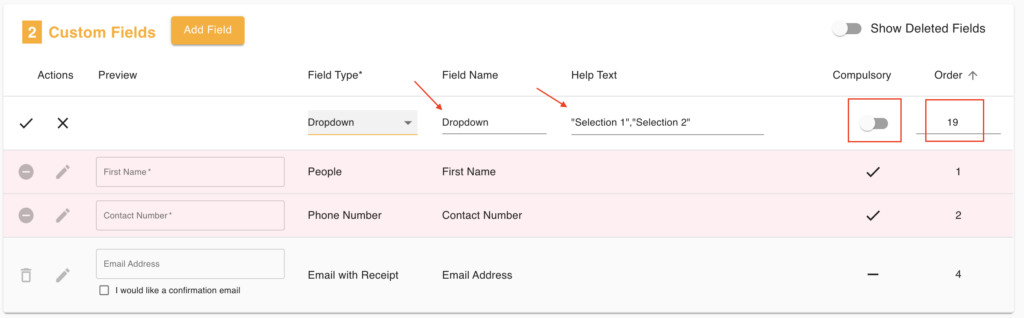
Step 2: Configure field
Edit the Field Name, Help Text, adjust the compulsory option and order if needed.
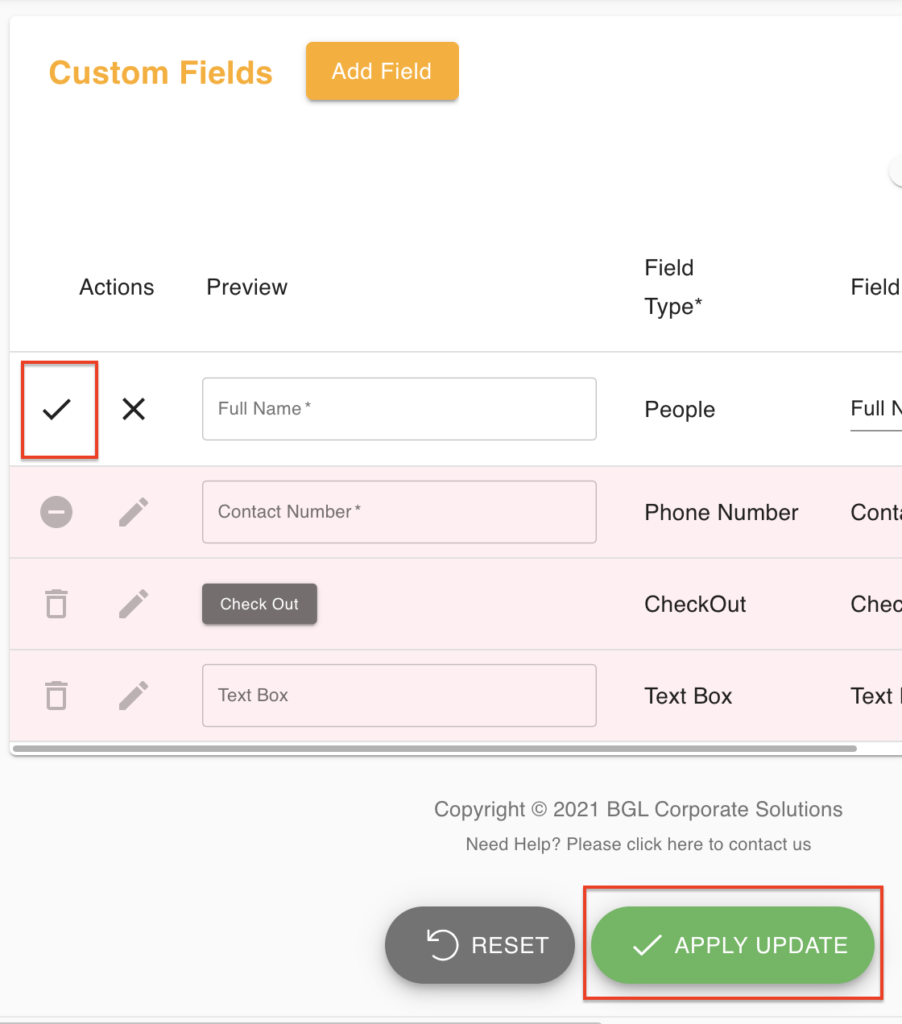
Step 3: Preview and save
Preview of the field is available under the "Preview" column. Click the "tick" icon to save your changes. Click the "Apply Update" button once you have added all the fields needed.
Available Field Types
- Text Box
- Phone Number
- Email Address
- Home Address
- Dropdown
- Checkbox
- Signature
- Date
- Web Link
Benefits
- Fully customizable - Design forms for any purpose
- Multiple field types - Text, dropdown, checkbox, signature, etc.
- Validation - Built-in format checking
- Flexible - Add/remove fields anytime