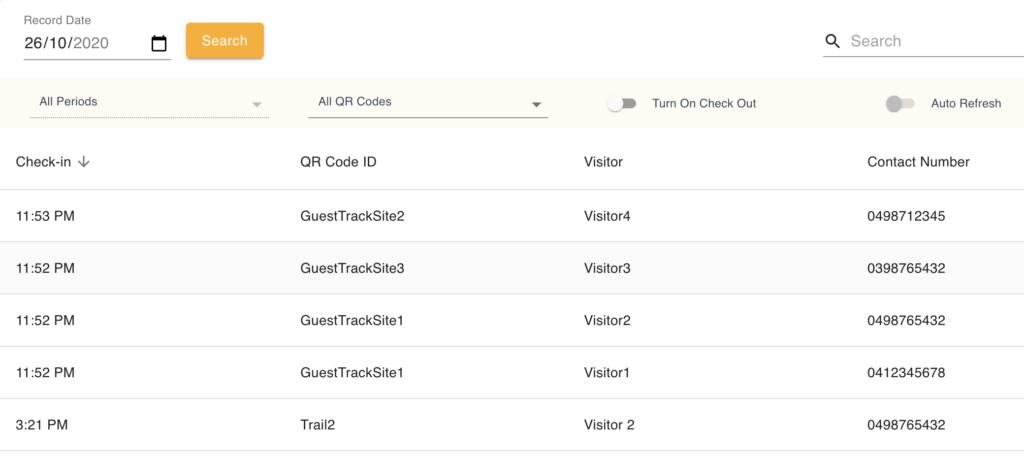
How to Set Up QR Codes for Multiple Sites
More than one site in your business? Create unlimited QR codes with unique names for each location — free for all GuestTrack plans.

If there are multiple sites in your business, you can create multiple custom QR codes for your different sites. Create unlimited QR codes with unique names for each location.
Step 1
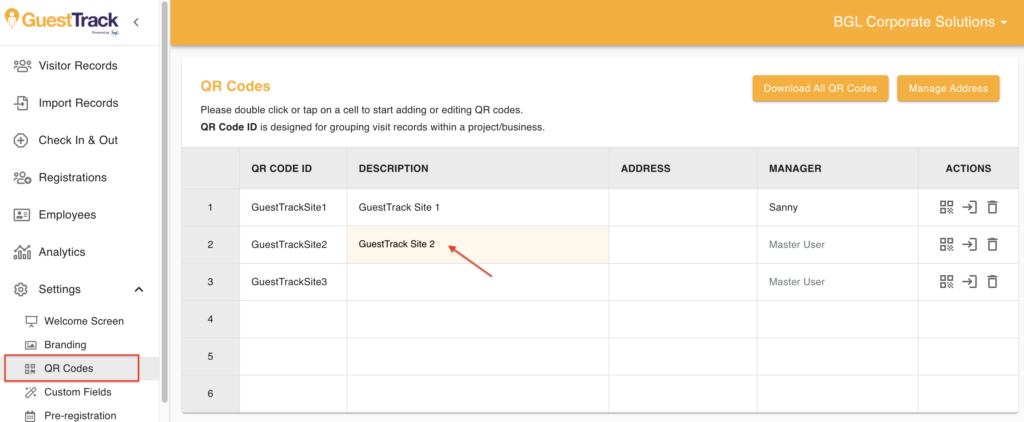
In Settings > QR Codes, create a QR code by entering a QR Code ID. We recommend using the site name as the QR Code ID (eg. Sydney, Melbourne).
Step 2
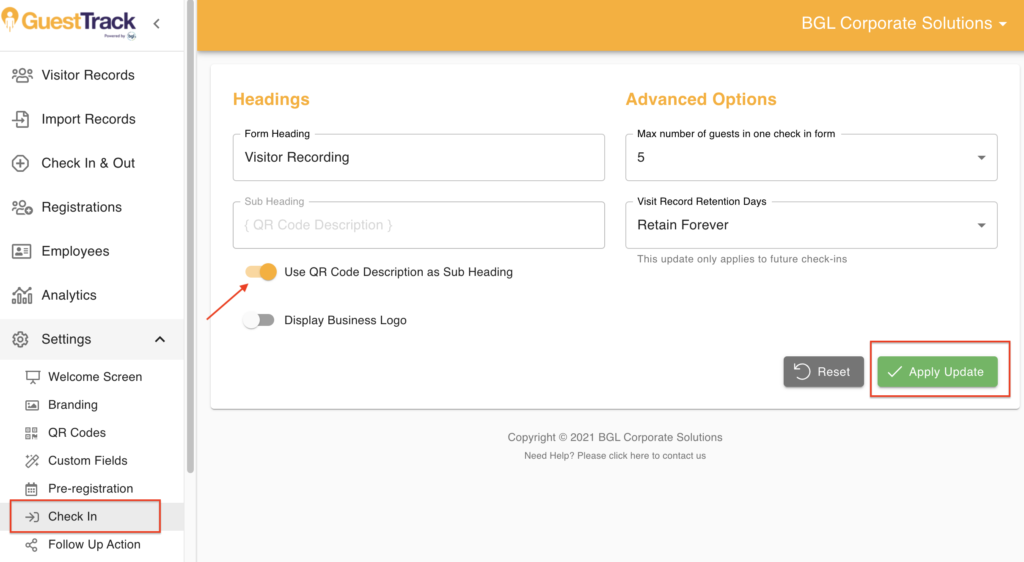
In Settings > Check In, turn on "Use QR Code Description as Sub Heading" if you want the QR code description displayed in your visitor form.
Click "Apply Update" to confirm your updates.
When a visitor visits one of your sites and scans the QR code of that site, the site name will be displayed in the visitor form as a sub heading so the visitor knows which site they are checking into.